
Core Features for Advanced Screen Brightness Control
Unlike heavy display software suites that take up system resources or reset your default graphics settings, DimScreen delivers a highly specialized, focused set of features designed purely to dim your monitor effortlessly.
Instant Global Hotkeys
Change display brightness instantly using universal keyboard triggers. No matter what document, browser, or tool you have open, you can scale the dark overlay instantly without clicking any system tray icons or navigating heavy menus.
10 Custom Opacity Levels
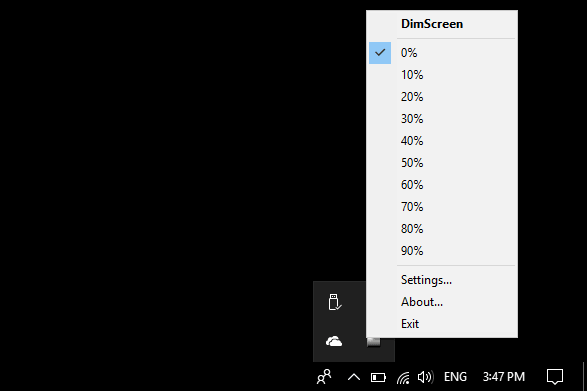
Fine-tune your night vision workspace with ten predefined dimming increments. Easily jump from a mild 10% shading for evening reading to a heavy 90% opacity layer for pitch-black environments to reduce acute glare.
Zero Registry Footprint
This application operates out of a single executable file with zero complex installation wizards, background updater telemetry, or lingering registry items. Keep it on a thumb drive and run it immediately on any machine.
Under the Hood: Software Overlay Technology
Understanding how DimScreen manages display levels helps you maximize its efficiency. Rather than forcing hardware modifications, it offers a secure, software-driven architecture that protects your display components.
1. Full-Screen Mouse-Passthrough Layer
DimScreen works by placing an invisible, dark-tinted window layer across your entire desktop real estate. This layer uses specialized Windows API parameters that allow clicks, selections, and mouse movements to pass straight through without lag, preventing any disruption to your regular workflow activities.
2. Global Keyboard Input Monitoring
Built using low-overhead scripting architecture, the tool actively listens for preset keyboard triggers globally. Whether you are browsing complex web databases or executing commands in an application, the script captures the shortcut inputs instantly to step the dark overlay opacity level up or down.
3. Color Profile Integrity Protection
Many automated night-mode utilities modify the graphics processing unit (GPU) Gamma Look-Up Tables, which severely degrades image contrast and distorts color reproduction. This tool preserves your default active ICC monitor calibration profiles completely, keeping your contrast balanced.
Technical Specifications
| Distribution License | Freeware (Compliant Distribution) |
| Deployment Model | Standalone Executable (Portable) |
| Average Memory Use | Less than 4 MB RAM |
| Processor Architecture | x86 / x64 Compatible |
| System Configuration | No Administrative Rights Required |
| Multi-Screen Setup | Primary Display Native Focus |
Ideal Scenarios for Software-Based Brightness Reduction
Standard physical monitor controls often fall short when working in dedicated settings. DimScreen fills the gap across multiple specialized daily computer workflows perfectly.
Late-Night Coding & Development
Even with dark modes enabled, standard integrated development environments (IDEs) can emit significant white glare from code lines. DimScreen drops the aggregate brightness further to match low ambient room lightning perfectly, keeping your concentration sharp during extended late sessions.
Reading E-Books and Long Documents
Reading extensive PDF white papers or text-heavy articles online creates heavy contrast contrast shock for human eyes. Applying a localized software dimmer dampens high-energy screen output, turning stark monitor backlights into a subtle, comfortable digital paper experience.
Multi-Monitor Workspace Balancing
When pairing a newer display panel with an older secondary screen, balancing physical brightness models via manual physical hardware buttons is tedious. Running a software solution lets you independent match display intensities to prevent continuous visual adjustment fatigue.
Theater-Mode Video Streaming
Watching dark-scene cinematic movies or multimedia streams in a dark room can be ruined by glowing IPS panel glow or bright browser interface toolbars. Forcing an overlay smooths panel luminance spikes, leading to an immersive movie theater atmosphere.
Frequently Asked Questions
Got questions about using a software-level monitor dimmer? Find quick, technical answers to common issues and operational configurations below.
Q: Is DimScreen safe to use, and why do some antivirus scanners flag it?
Yes, the original version is completely safe, free of spyware, and malware-free. It is compiled using AutoHotkey (AHK). Because AHK executables manipulate window layers and listen to global keyboard inputs to adjust brightness, modern security suites like Windows Defender occasionally flag it as a false positive. You can safely whitelist the executable or add it to your security exclusion list.
Q: Does this utility save physical battery life on laptop screens?
No. Because it uses a software-level dark overlay rather than dropping physical LED backlight current values, it does not reduce power consumption on standard IPS or TN LCD displays. Its primary benefit is medical and ergonomic—reducing aggressive visual output to lower eye strain, alleviate insomnia, and prevent headaches during dark hours.
Q: How do I make the utility start automatically when Windows boots up?
Since it is a non-installed, portable application, it doesn’t add itself to services automatically. To enable boot launch, press Win + R, type shell:startup, and hit Enter. Copy and paste a shortcut link of your executable file into that directory. Windows will now initialize your shading preferences smoothly on every system login.
Q: Why do shortcut keys stop working inside video games or Task Manager?
Windows security isolation blocks standard processes from interacting with apps running under Administrative elevated rights. If your active window is an elevated utility or an exclusive fullscreen mode video game, the background hotkeys will be ignored. To circumvent this, simply close the app, right-click the executable, and choose “Run as Administrator”.
Ready to optimize your desktop visual workflow experience?
Proceed to Secure Download PageAdvanced Configuration & Shortcut Remapping
Because DimScreen is a minimalist portable application, it does not include a complex graphics configuration panel. Follow this professional guide to modify hotkeys and optimize its performance on modern Windows environments.
How to Change Default Hotkeys
By default, the application maps brightness adjustments to Ctrl + + and Ctrl + -. If these keys conflict with your web browser zoom functions or design software, you can remap them via its initialization file:
- Run the executable file at least once to allow it to initialize configurations.
- Look inside the same folder for a newly generated configuration file named
dimscreen.ini. - Right-click the file and open it using Windows Notepad or any text editor.
- Locate the lines reading
DimKey=and change the modifier keys following the AutoHotkey key syntax documentation (e.g., using#for Windows Key or!for Alt Key). - Save the document, close Notepad, and restart the application to apply your new tailored hotkeys.
Fixing Taskbar & Start Menu Overlay Issues
On certain Windows 11 builds, the default OS taskbar or notification panels might occasionally pop over the dark overlay layer. To force strict置顶 (Always-on-Top) persistence, ensure no third-party display controllers are resetting window positions globally, or toggle the application off and on from your system tray menu.
Optimizing CPU and Resource Utilization
Because this tool is built upon a compiled static loop script, it naturally consumes almost 0% CPU cycles. To keep execution overhead minimal, avoid running multiple duplicate processes simultaneously. Check your Task Manager background details to confirm only one single process thread is active.
Portable Deployment & Safe Removal Guidelines
As an uninstalled standalone freeware application, DimScreen leaves your operating system clean. Review our structured directory guidelines to deploy or decommission the utility properly.
How to Setup (No Installation Required)
Because this tool operates without an MSI or setup packaging wizard, traditional system deployment is unnecessary. To keep your workstation organized, follow these steps:
- Create a dedicated subdirectory on your persistent storage drive, such as
C:\Program Files\DimScreen\or within your local tools partition. - Move the fetched standalone executable file directly into that secure folder.
- Right-click the executable file, navigate to Send to, and select Desktop (create shortcut) for comfortable workflow access.
- Double-click the desktop icon to instantiate the dimming engine. A new miniature lamp icon will manifest inside your primary Windows taskbar system notification tray area.
How to Completely Uninstall
Since the freeware utility will not appear within the native Windows App Settings panel or the legacy Control Panel Add/Remove programs list, you can execute a completely clean wipe manually without leaving ghost data:
- Locate the active icon within your bottom right notification tray area. Right-click the icon and choose Exit to shut down the runtime layer entirely.
- If you mapped the application to run automatically on boot, enter your startup directory via
shell:startupand delete the associated shortcut template link. - Navigate back to your created folder path and permanently delete the local directory folder containing the executable and the configuration text file.
OS Compatibility & Display Panel Safety
Before deploying any display utility, understanding operating system baseline bounds and hardware panel interactions guarantees a frictionless user experience.
Windows OS Compatibility Matrix
Though compiled in an earlier computing era, the foundational Windows API structures utilized by this utility remain highly robust across modern desktop environment branches:
- Windows 11: Fully compatible. Requires standalone execution. Running as Administrator is recommended to avoid window placement depth layering conflicts.
- Windows 10: Native support. Hotkeys bind cleanly globally with negligible process footprint overhead.
- Windows 7 / 8: Seamless execution out of the box with zero specialized modifications required.
Display Technology Behavior (LCD vs OLED)
Software shading layers interact uniquely depending on your physical display hardware engineering configuration:
- LCD / LED Panels: Smoothly dampens stark screen luminescence to protect dark-adapted vision without creating panel artifacts.
- OLED / Mini-LED Panels: Provides excellent screen glare mitigation. Because it leverages a dark software shade overlay, it reduces localized subpixel strain across emitting display elements safely.
DimScreen vs. Other Monitor Dimming Utilities
How does this classic utility stack up against modern alternatives and heavy display calibration suites? Review our comprehensive technical breakdown below.
| Feature / Metric | DimScreen | Dimmer (by Nelson P.) | f.lux | Windows Night Light |
|---|---|---|---|---|
| Execution Model | 100% Portable (.exe) | Portable | Requires Installation | OS Integrated |
| Color Profile Manipulation | None (Preserves ICC) | None (Overlay Layer) | Alters Gamma/Orange Tint | Alters System Tint |
| Memory Footprint | Extremely Low (<4 MB) | Low (~15 MB) | Medium (~50 MB+) | Low (Kernel Level) |
| Adjustment Method | Global Shortcuts/Tray | UI Sliders Only | Time-based / Auto | Schedule / Toggle |
| Registry Bloat | Zero | Zero | High (Deep Hooks) | Native Integration |
| Best Suited For | Speed & Keyboard Users | Multi-screen Fine-tuning | Circadian Rhythm Match | Basic Blue Light Reduction |
Community Feedback & Objective Review
Gathered from historical open-source software repositories, developer forums, and utility subreddits, here is an honest assessment of its strengths and structural limitations.
The Pros (What Users Love)
Flawless Multi-Monitor Handling
Sysadmins and multi-display power users note that it shades standard extensions without triggering window boundary lag, a common flaw in modern heavy alternatives.
True Invisible Passive Mode
Once loaded, it draws zero graphic frames and leaves no ongoing window handles visible, operating quietly in the notification tray until keyboard shortcuts call it.
Indestructible Portability
Corporate employees who operate on locked-down enterprise hardware praise its ability to run cleanly without requiring native administrative installations or setup rights.
The Cons (Known Limitations)
No Native Blue-Light Filtering
It does not shift color spectrum temperatures towards orange tints. It reduces luminance volume overall, which might not satisfy users looking specifically for amber tinting.
Lack of Graphical Settings Panel
Adjustments rely entirely on system tray mouse contextual selections or manual initialization text script hacking, which lacks modern sliding bar animations.
Administrative Application Blocker
Without applying specialized run-as-admin launch choices manually, standard user hooks will get suspended whenever working windows hold elevated privileges.
Ready to Relieve Your Eye Strain Instantly?
Download the unaltered, lightweight vanilla executable safely. No installation, no telemetry, no registry bloat—just clean software-level screen dimming for your Windows workspace.